
Why Phone Battery Drains Fast — And What’s Actually Happening Inside Your Phone
An honest answer for anyone who has ever looked at their phone at 2 PM and seen that it was only 30% charged and wondered where the rest of the charge went.
You left home this morning at 100%. You didn’t even look at a video. You sent a couple texts, looked at Instagram once (or maybe twice), and used Google Maps for about ten minutes. Your battery is already at 30% and panting for life like it just completed a marathon.
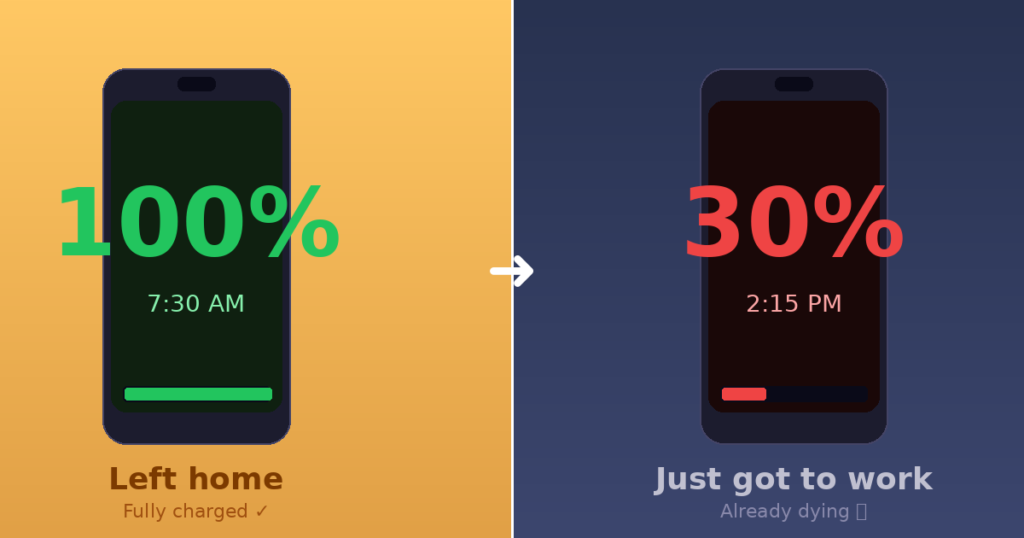
Does this sound familiar?
You’re not imagining things if you’ve ever felt that your phone battery let you down. One of the most prevalent tech problems that consumers have to deal with every day is their phone battery dying quickly. And the worst part is? Most people have no idea why it happens — they just know it does.
Let’s change it. No technical terms or jargon. A polite explanation of why your phone battery dies so quickly, what is silently killing it, and what you can do about it.
Why Your Phone Battery Seems New at First
When you first get your phone, the battery seems like it can do anything. You plug it in at night and unplug it in the morning. By bedtime, it’s still going strong. You think, “Wow, this phone is amazing.”
Then six months go by. Then a year. All of a sudden, that identical pattern has you looking for a charger by lunchtime.
Listen up: your battery didn’t break. It got older. And that process starts with the very first charge.
Lithium-ion is the chemical that makes up smartphone batteries. It works great when it’s new, but with time it loses its capacity to keep a charge. Every time you charge it, from 0% to 100%, it puts a little amount of stress on the battery. It’s like moving a paperclip back and forth. You can hardly see each bend, but the metal will finally give.
This is termed “battery health decline,” and it’s perfectly natural. But it does mean that the battery depletion problems you’re seeing right now can have more than one reason. Some of them you can remedy today, and some are just how things work.
Let’s look at both of them.
What Actually Drains Battery the Most
Imagine that your phone battery is like a water tank. Everything works well when it’s full. But there are a lot of taps open at the same time. Some of them you opened on purpose, and some of them opened without you asking. You might think that your android or iPhone battery is draining quickly, but it’s not usually one major leak. There are dozens of little ones, and they are all rushing at the same time.
Here are the worst offenders.
Screen: The Biggest Battery Consumer
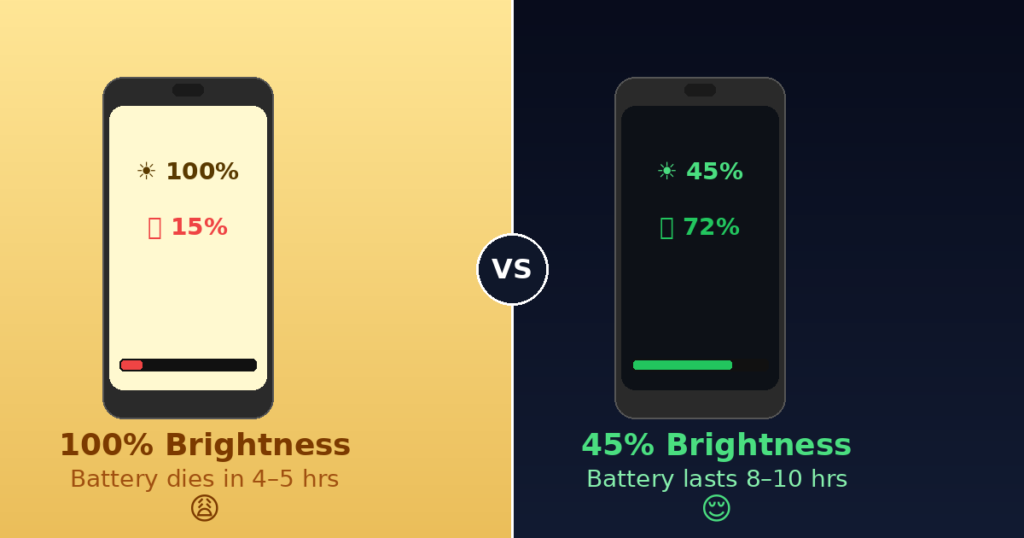
Start here if your phone’s battery is dying quickly and you don’t know why. Your screen is generally often the main problem.
Modern smartphone screens, especially OLED and AMOLED ones, look great. They’re clear, bright, and colorful. But that beauty comes with a price. There is a direct link between screen brightness and battery life. Your phone’s technology has to work more to power all those little pixels lighting up in your hand when your screen is brighter.
If you look at it this way, having your screen at full brightness is like having all the lights in your house on at midday. You can do it. It costs more, that’s all.
Auto-brightness sounds smart, but it’s actually more sneaky than you think. Your phone will turn up the brightness to the highest level if you’re outside on a sunny day. This will quickly drain your battery. A lot of phones automatically set their brightness too high, even when they’re inside.
What you can do: Manually lower your brightness to a level that feels good. Indoors, 40–50% is typically fine. If your phone has an OLED screen, turn on dark mode. Dark pixels on OLED screens use less power than bright ones. Just this one tweak can make your battery last a lot longer.
Also, check the settings for how long the screen stays on. If your screen stays on for two minutes instead of thirty seconds while you’re not using it, that’s a lot of extra power use over the course of a day.
Background Apps You Don’t Notice
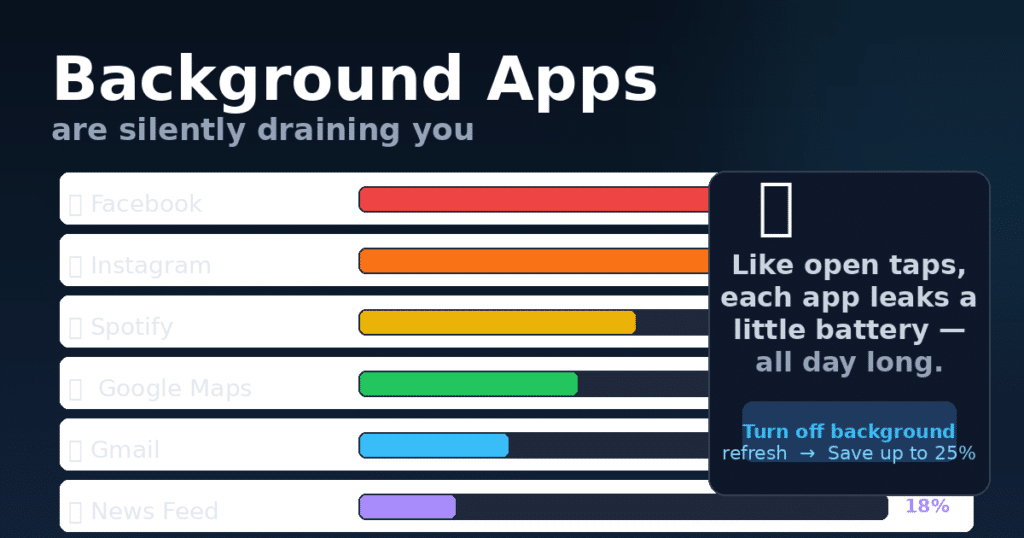
A lot of folks are surprised by this one.
You hit the home button to close an app, and you think it quits running. But a lot of apps on both Android and iPhone stay operating in the background, updating their content, syncing data, getting notifications, and looking for new ones. It’s like leaving your car running in the parking lot while you go shopping. The gas is still burning, even though you’re not going anywhere.
Background apps use up a lot of battery power, which is a big reason why the battery % declines quickly during the day, even when you don’t use your phone much. This happens a lot with social media apps. Facebook, Instagram, TikTok, and other similar applications are always sending pings to servers in the background to load new content so it’s available when you open them.
What you can do: Check your phone settings to see whether apps have “background app refresh” turned on. If you just check your weather app once a day, you don’t need it to refresh every 10 minutes. Check your battery options on Android to see which apps are using the most power. The list usually tells you a lot.
Network Signal and Battery Drain
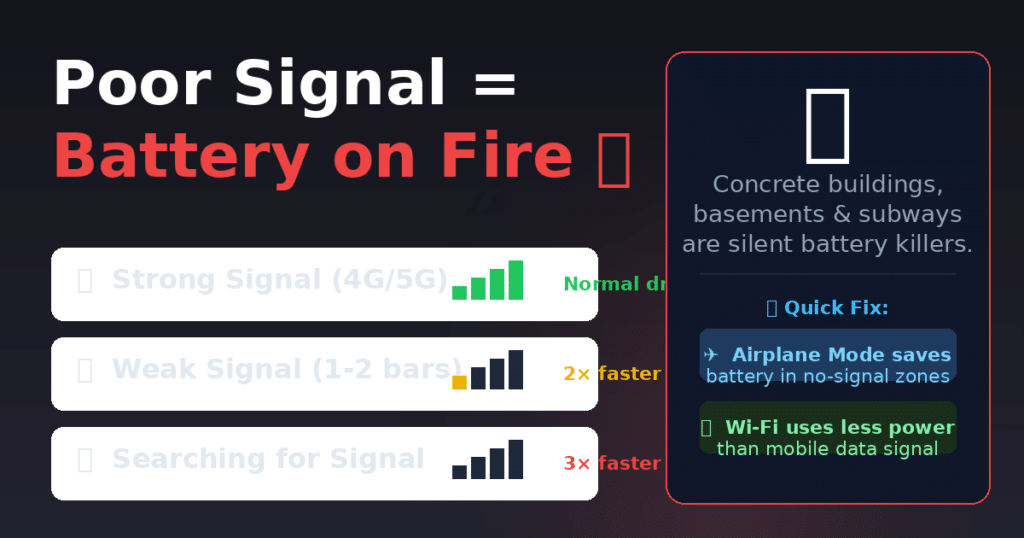
One thing that most people don’t think about is how bad signal can drain your battery.
When your phone’s cell signal is weak, like when you have low bars, intermittent Wi-Fi, or are continuously switching between 4G and 5G, it needs to work much more to stay connected. It’s like attempting to talk to someone in a loud room. The weaker the signal, the more you have to yell. The more your phone “shouts” at mobile towers, the more battery it uses.
This is why your phone’s battery dies so quickly when you’re in the country, in a basement, in a concrete structure, or on the go. Your phone is like a treadmill that runs all day because it keeps looking for a stable signal.
What you can do: If you’re in a place where the signal is always terrible and you don’t expect any critical calls, going to airplane mode can save a lot of power. When you’re on Wi-Fi, your phone usually uses less battery than when it’s using mobile data. So, when you can, it’s best to be connected to reliable Wi-Fi.
Location and GPS Power Use
One of the most power-hungry parts of your phone is the GPS chip. And a lot of apps—more than you’d think—can see where you are and check it often.
That app for getting around is operating in the background. Still sending your location. You ordered from that food delivery app last Tuesday. Still looking into where you are. That game you downloaded by chance? Somehow also curious in where you are.
Location services and battery drain are two things that happen at the same time. When more than one app is using your GPS at the same time, it’s like a lot of people attempting to use the same tap at once. The tank empties faster.
What you can do: Check your privacy or location settings to see which apps can always see your location. Most of them don’t need it. For apps that don’t need to monitor you, you can turn off location completely or set it to “only while using the app.”
Battery Age Over Time
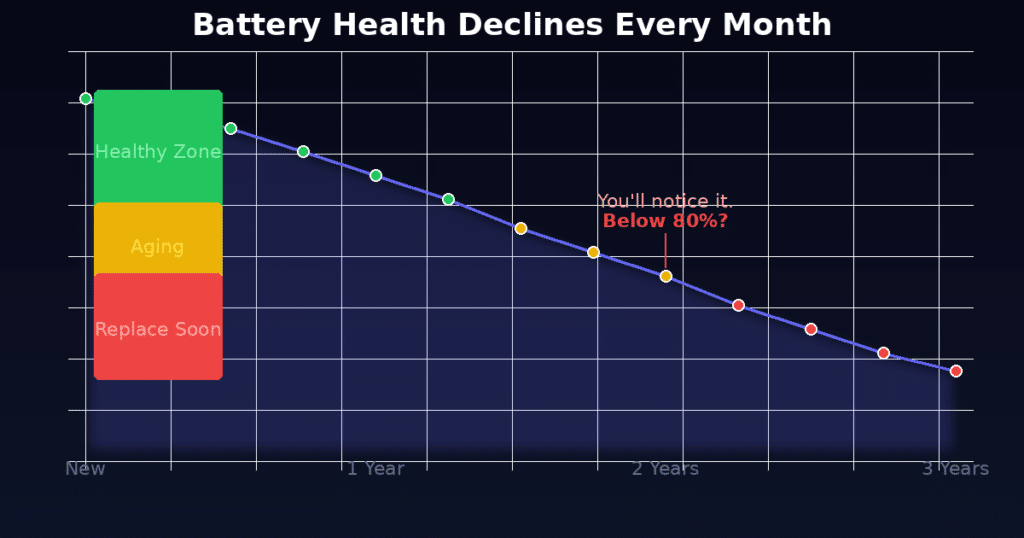
We talked about this before, but it’s worth delving into more detail because battery health decline is typically the quiet source of battery life problems that people can’t explain.
Every time you charge a lithium-ion battery, it gets worse. Most batteries store considerably less charge than they did when they were new after about 300–500 full cycles, which is about one to two years of daily charging. After two years, a battery that used to hold 3,500 mAh may only work like a 2,800 mAh battery.
So, your phone’s battery dying quickly isn’t necessarily because of apps or settings. Sometimes the battery just can’t retain as much energy anymore, so even when it says “100%,” you’re not starting with as much as you believe.
You can check the health of your battery on both iPhone and Android. To check the health and charging of your battery on an iPhone, navigate to Settings > Battery > Battery Health & Charging. You can get similar information in Settings > Battery on most Android phones. You really start to notice the difference in daily use when your battery health drops below 80%.
Hidden Battery Killers
Some battery drains are less obvious, but they pile up:
Push notifications and frequent syncing—every time your email, calendar, or messaging app syncs with a server, your phone wakes up a little, uses some data, and processes information. That’s hundreds of little wake-ups throughout the day if you have ten apps doing this every few minutes.
Vibration motors—vibration takes more battery than a regular ringtone. If your phone buzzes every time you get a notice, those little pulses pile up over time.
Bluetooth: If Bluetooth is on and looking for devices, it uses power all the time. If NFC is turned on and not being used, it’s the same.
High-performance apps and games—this is an obvious one, but mobile gaming is one of the fastest ways to run out of energy. Games can use up your processor, GPU, screen brightness, speakers, and even your location services all at once. It’s like flooring the gas pedal; you’re using up gas as quickly as your engine can handle it.
Software updates: After a big OS update, your phone typically does things in the background that use up battery life, such re-indexing files, optimizing apps, and recalibrating systems. If your battery suddenly went worse after an update, don’t worry right away. Give it a day or two for these background procedures to finish.
How to Make Your Battery Last Longer
Okay, now you’ve heard the problems. Here are the answers that will really help:
Turn down the brightness of your screen and make the screen timeout shorter. This is the one adjustment that will have the biggest effect on most people.
Turn off location for apps that don’t need it. Go through your location settings once and clean them up properly. You might be shocked at how many apps can access your data “always on.”
Check the background app refresh. For news, social media, and entertainment apps, turn it off. You don’t need to keep refreshing them while you’re not utilizing them.
When you can, use Wi-Fi instead of mobile data. It’s usually better for your phone’s battery life.
Turn on battery saver or low power mode earlier in the day instead of waiting until you’re at 20%. These modes help by lowering the brightness of the screen, limiting refresh rates, and cutting down on background activity.
Charge smart. Instead of always charging your battery to 100% and then letting it drain to 0%, try to keep it between 20% and 80%. This is better for lithium-ion chemistry and slows down the process of long-term deterioration.
Restart your phone often. A simple restart once a week gets rid of background programs that build up over time and might drain your battery without you knowing it.
When You Need to Change the Battery
If your phone’s battery health is less than 80%, it’s more than two years old, and changing the settings doesn’t help, it’s probably time to get a new battery.
Most individuals don’t know that battery replacements are cheaper and easier to get than they think. Apple sells them in Apple Stores and other places that are allowed to fix them. Many Android phone makers provide comparable schemes, and a lot of third-party repair shops can replace common phone batteries for a fair price. It costs less than getting a new phone, and it really does make the phone feel new again.
Don’t wait until your battery can’t retain a charge for more than two hours. If you’re still having problems with your battery draining quickly even after following the instructions above, a new battery might be the best solution.
The Bottom Line
Your phone battery isn’t letting you down; it’s just doing a lot more than you think and becoming older at the same time. Throughout the day, the bright screen, the apps that won’t stop running in the background, the weak signal hunting, the GPS monitoring, and the natural aging of the battery all add up.
The good news is that most of these problems can be fixed or at least dealt with. You can really make your battery last longer by making a few smart tweaks to your settings, being mindful of what’s running in the background, and following some simple charging habits.
Your phone does a lot of work for you. Help it out a bit, and it will go a long way.
Found this helpful? Share it with someone who’s always borrowing a charger.
